Using the inbox
Every task, whatever the role. Each person sees only the ones their role allows, and times like “closes after 3 days” are the defaults, which a workspace's admins can change. Signed in, Getting started shows your own workspace's.
Set up your workspace
- Open the setup guide ( gthen f). Seven short steps: workspace basics, a brand and its accounts, your team, response targets, saved replies, alerts and your logo, then a summary.
- Skip any step and come back later: the guide opens on the first step still to do. A step is marked done when the workspace actually has it (a connected account, an invite, a policy), not when a box is ticked.
- The inbox shows a Finish setting up card to owners and admins until the guide is finished. Hide it with its close button; the guide stays in Settings → Setup guide and here.
Answer a customer
- Open the Inbox ( gthen i). Every comment and direct message from the connected accounts is a conversation there.
- Start on Needs reply ( 1): the customer is waiting. Your reply moves the conversation to Waiting on customer ( 2); mark it Done ( 3) when it is resolved, or it closes itself after 3 days of silence in Waiting. All ( 4) lists every conversation whatever its state, newest customer message first; only the ones that still need a reply are marked. Choose Everyone, Mine or My team above the tabs. Snoozed conversations stay out of every tab until they come back (Filter → Snoozed only shows them).
- Views beside the tabs holds a few ready-made ways to look at the inbox: Unassigned, Overdue, My conversations and Negative sentiment. Each is just a filter and sort; the address bar carries it, so a view can be bookmarked or sent to a colleague.
- Filter holds everything that narrows the list: Unread only ( u toggles it), the customer's last message by date ( d opens the dates: Today, Yesterday, Last 7 days, Last 30 days, or your own From and To dates, in the workspace's time zone), the network, channel, topic, product line, owner and more. The tab counts and Mark all as read follow it.
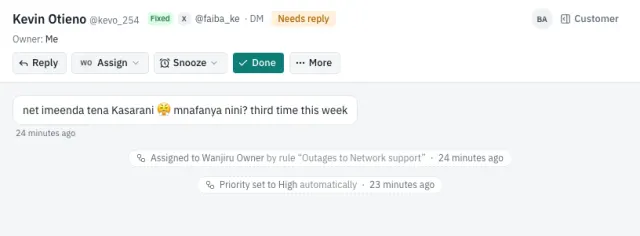
- A bold row has a customer message you have not seen; on Needs reply the row says how long the customer has been waiting. The chip on the right is the response target when it is running short: amber, then red once overdue; otherwise it shows the owner's initials.
- Click a row, or move with j and k. The customer is on the left, your team's replies on the right (each with the sender's initials and name), internal notes in yellow. Under the header one quiet line sums up the automatic changes (reopens, routing, priority, auto-close); click it for the list, which names the rule when an automation did it.
- On a public comment, the strip under the header says which post it is on: the start of the post's text, its picture, when it was posted and View post to open it on the network. When the network has not given us the text yet, it says so (Instagram posts then have no link either; we do not guess one).
- Press r (or click the box), write, and send with ⌘/Ctrl + Enter. The reply goes out from the brand's account, never your own profile; the counter shows the network's character limit. Type / for a saved reply with the customer's name filled in.
- Public replies end with your sign-off (your initials, like ^MN) so customers know who answered; the box says what it will be. Change it or turn it off under Settings → Account. Direct messages and notes are never signed.
- Starting to reply on a conversation nobody owns makes it yours. While a colleague is writing on one, the box says so and Send waits; Take over makes it yours after two minutes without typing (a supervisor can at any time). If someone replied while you were writing, the box shows their reply and asks before sending yours.
- On X, a public reply with a link costs the workspace 20 times a plain reply ($0.20 instead of $0.01); the box warns you when it sees one and offers to send the link by DM instead: the links move into a Private message that goes to the customer right after the public reply. A saved reply with a private part does the same in one click. If the person does not accept DMs, the thread says so and offers to send the text publicly.
- Note turns the box yellow: an internal note your team sees and the customer never does.
Conversations labelled Imported history are earlier records: read-only, with no response target.
Use an AI suggestion
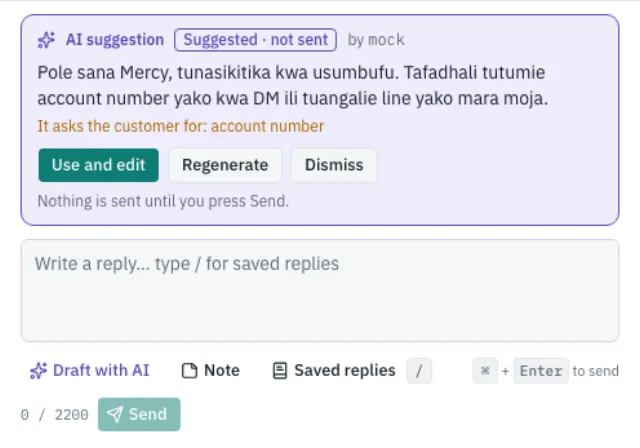
- In a conversation press Draft with AI ( ⌘/Ctrl + D). Add anything the draft should know (optional, e.g. “technician comes tomorrow”) and press Write draft.
- The suggestion appears above the box in its own card, marked Suggested · not sent. Use and edit puts it in the reply box (if you already typed something it asks before replacing it); Regenerate writes another; Dismiss drops it.
- Read and correct it: the AI does not know account details, prices or outage times. When it needs something from the customer it says so on the card.
- Nothing is sent until you press Send. A reply you started from a suggestion shows AI-assisted in the thread; the AI never sends anything itself.
Hand over: assign or snooze
- Assign ( a): pick any member (online members first, each with a green dot and their initials), Assign to me, or Unassign. Your own Online / Away switch is in the account menu at the bottom of the rail.
- Snooze ( s) hides it for 1 hour, 4 hours, until tomorrow 9:00 or a time you choose (Custom…). It comes back then, or as soon as the customer writes. The response target keeps running.
- Tags ( t) and Priority are under More.
- On a public comment, Move to DM ( m) posts a short public reply and continues privately in a linked conversation.
- To come back to it yourself, Mark as unread ( Shift + U) keeps it bold for you.
Mark done and reopen
- When it is handled press Done ( e); the next conversation in your list opens.
- A reply moves the conversation to Waiting on customer by itself; it closes after 3 days there without a word from the customer. Waiting for the customer without replying? More → Mark as waiting on customer. It pauses the resolution target.
- If the customer writes back within 72 hours, the conversation reopens by itself; later, a new conversation starts, linked to the old one. A message that only says thanks (“asante sana 🙏”, “ok thanks”) is added to the Done conversation without reopening it.
- To reopen one yourself, open it from Done and press Reopen (the same key), or just reply.
Label a message or split a conversation
- One customer can raise two things in one conversation (say 4G coverage and a Faiba Home cable cut). Under each of their messages, Label ( l opens it for the message you are on, else the latest) lets you tick its Topic and Product line; each tick is saved at once and shows as a chip under the message. The conversation's own topic and product line in the customer panel stay as they are.
- Reports count these labels separately (Message topics, Message product lines), by when the message was sent; one message can carry several.
- Split into new conversation… in the same menu moves that one message to a new conversation of its own, linked to this one, with the same owner and a new response target. Replies there go to the same thread on the network, under that message where the network allows it. The customer's next messages in the thread still arrive in the original conversation. A conversation's only customer message cannot be split off.
Read the customer panel and correct a label
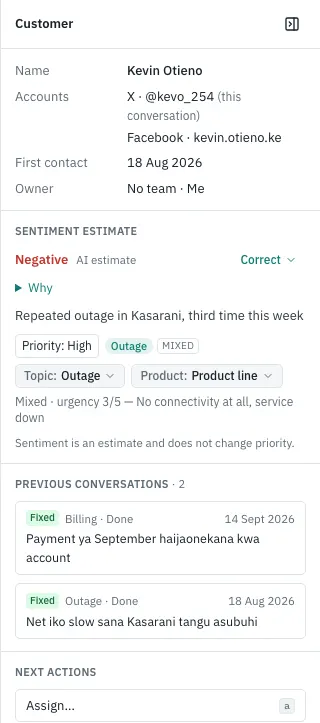
- The panel on the right of a conversation ( i shows or hides it; on narrower screens the Customer button opens it) has the customer's accounts, when they first wrote, who owns the conversation and their earlier conversations.
- Phone / Account: phone and account numbers the customer writes are highlighted in their message and suggested here. Press Save if it is theirs or Not theirs if not; Add one given on a call. c copies the saved account number.
- Saved numbers then show, each with a copy button, under the customer's name at the top of the conversation and of the panel, on their profile and in the Customers list; until one is saved, the conversation's top says how many are to review.
- The panel reads top to bottom: the customer, the Current issue (the AI's one-line summary with the Topic and Product chips), Ownership and timing (owner, priority, first reply and resolution), History, then AI details, folded away: the sentiment estimate with Why, the language and the urgency. The estimate never changes priority.
- Wrong label? Press Correct for the sentiment, or the Topic and Product chips, and pick the right one. Reset to AI puts the original back. Reports count what you leave.
- A brand reply that came back from the network carries Automatic reply when it was the greeting bot; it never counts as your team answering. Wrong? Hover it and open Automatic?: Not automatic makes it your reply at its time (first response, Waiting on customer), Mark as automatic does the reverse.
Find a customer and merge duplicates
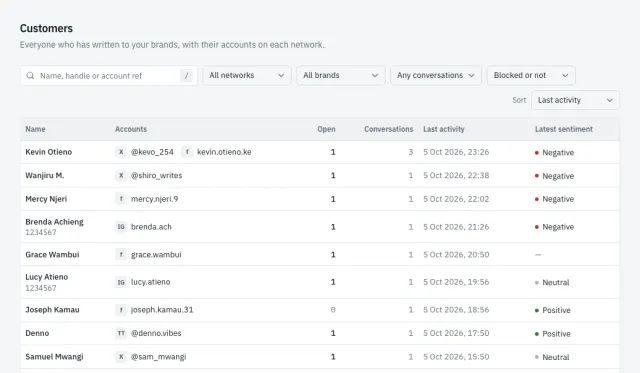
- Customers ( gthen u) lists everyone who has written to your brands. Search by name, handle or account ref ( / jumps to the search), filter by network, brand, open conversations or blocked.
- A profile shows their accounts on each network and a timeline of their conversations. Edit changes the name or account ref.
- The same person on two networks? Open one profile, press Merge, find the other, choose which profile to keep and confirm. Accounts and conversations move to the one you keep; the merge is recorded in the audit log.
Moderate comments
- Under a customer's public comment, or with h, you can hide or remove it on the network itself. What is offered depends on the network: the menu only shows what the network allows.
- Block ( b, under More) works inside Social Media Tool only: their messages are kept but open no conversations and alert nobody. To block them on the network, do it there.
Reports and the team digest
- Reports ( gthen r) cover a date range: volume, first response and resolution times, results against the targets and sentiment, by topic, product line and network. The CSV buttons download the detail. Reports are on Insights.
- Numbers about a named person (the Agents tab and CSV, the assignee in the tickets CSV, the live floor, scorecards) are for those who monitor the team, and only for the people in their own teams; admins and the owner see everyone. A viewer sees the workspace's totals only.
- For supervisors: reminders and the daily digest. The tool speaks up when customers wait. An agent whose conversation has had no reply for the workspace's reminder time gets a nudge ("Kevin has been waiting 15 min"); past the escalation time the team's supervisors are told too, and unassigned conversations reach them directly. At the digest times on business days, everyone who can see reports gets the team digest: who is waiting and for how long, the oldest customer with a link and the totals since the last digest; those who monitor the team also get replies and first-response times per agent of their own teams. The times and minutes are under Settings → Workspace; each person picks in-app or email under Settings → Notifications. SLA alerts can be limited to conversations started after a chosen moment, so an imported backlog stays quiet.
Team performance and coaching
- Team on the rail holds the live floor, planning, performance and coaching. A supervisor sees the people who share a team with them (Settings → Teams); admins and the owner see everyone. A supervisor who is in no team sees only themselves until an admin adds them to one.
- The Live floor ( gthen t) is the first Team tab: who is online, on a break (and for how long against its plan) or away, the conversation each person has open and for how long, their queue, and flags in plain words: at capacity, idle with work waiting, break overrun, scheduled but not signed in. With the right to assign, Reassign moves one of a person's Needs reply conversations to a colleague in one step.
- Planning ( gthen w) is the weekly roster: a shift per person per day from the workspace's shift templates, Copy last week and Publish. Agents only see published shifts. Adherence is the share of scheduled time a person was online or on a break.
- Performance ( gthen k) puts each agent against the targets: first response, resolution time, replies per online hour, adherence, quality score and negative sentiment. Open a person for their scorecard and trend. Admins set the workspace and team targets; a supervisor can set one person's own target on their scorecard.
- Coaching ( gthen q): every Monday at 06:00 a sample of each agent's conversations from the week before (some negative, the longest wait, a reopened one, the rest at random) waits for review. Open one, read the conversation, answer the checklist and submit; the agent is told and can acknowledge. Coaching notes and goals with a due date live here too; you are reminded when a goal is due. Agents see only their own scorecard, never anyone else's.
Your scorecard
- Your scorecard ( gthen s, or the account menu) shows your own numbers for today, this week or this month against the team's targets, with a two-week trend, your upcoming shifts, the quality reviews of your conversations and your coaching goals. Nobody else's numbers appear there.
- When a review arrives you get a notification. Read it, then Acknowledge, optionally with one comment for your supervisor.
- Breaks: Take a break in the account menu ( Shift + B) with a reason. Nothing new is assigned to you until you end it; the floor shows how long you have been away against the planned length.
Automations
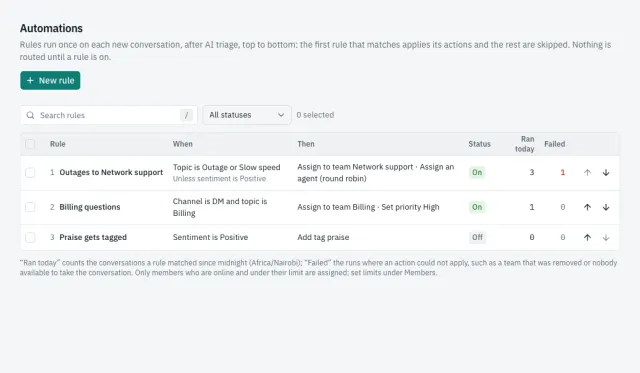
- Automations ( gthen m) lists the routing rules: when each applies, what it does, whether it is on, how often it ran today and how often it failed. Select rules to turn several on or off at once; the arrows change the order.
- Rules run once on each new conversation, after the AI has labelled it, from the top: the first rule that matches applies and the rest are skipped. A new rule is off until you turn it on, so nothing changes by surprise.
- Open a rule to edit it step by step: Trigger, Conditions (all must match), Actions (in order) and Exceptions (any one skips the rule). Save with ⌘/Ctrl + Enter.
- Recent runs lists the conversations a rule acted on. A run fails when an action could not apply: the team or tag was removed, or nobody was online and under their limit to take the conversation.
Keep X costs down
- X charges for every post, profile and DM the tool reads and for every reply it sends. Settings → Usage shows today's estimated X spend against the daily budget, the last 14 days (inbound, outbound, listening) and what each type cost. X's developer console is the actual bill.
- Set the Daily budget there. At 80% admins are notified; at 100% listening on X pauses until 00:00 UTC; at 150% X is checked every 15 minutes instead of every few. Replies, DMs and incoming messages are never blocked.
- Listening is the largest variable cost: keep searches few and specific. X searches already leave out reposts and posts mentioning your own accounts (those arrive in the inbox), and each search shows the query as it is sent.
- A post or reply containing a link costs $0.20 on X. Ask the team to send links by DM.
Keyboard shortcuts
Press ? anywhere for this list. Conversation shortcuts act on the one that is open.
| Action | Keys |
|---|---|
| Navigation | |
| Go to inbox | gthen i |
| Go to customers | gthen u |
| Go to brands | gthen b |
| Go to notifications | gthen n |
| Go to account (password, sign-off) | gthen a |
| Go to publishing | gthen p |
| Go to publishing calendar | gthen c |
| Go to reports | gthen r |
| Go to listening | gthen l |
| Go to insights | gthen o |
| Go to automations | gthen m |
| Go to the getting started guide | gthen h |
| Go to the setup guide (owners and admins) | gthen f |
| Go to support requests (contact support) | gthen e |
| Go to the support queue (staff) | gthen v |
| Go to errors (staff) | gthen x |
| Go to announcements (staff) | gthen y |
| Go to status incidents (staff) | gthen z |
| Go to data & privacy (export your data) | gthen d |
| Team | |
| Go to the live floor | gthen t |
| Go to planning (the weekly roster) | gthen w |
| Go to performance (targets and scorecards) | gthen k |
| Go to coaching (quality reviews) | gthen q |
| Go to your scorecard | gthen s |
| Take a break, or end it | Shift + B |
| Tickets | |
| Needs reply tab | 1 |
| Waiting on customer tab | 2 |
| Done tab | 3 |
| All tab (every conversation) | 4 |
| Next ticket | j |
| Previous ticket | k |
| Show only unread tickets (toggle) | u |
| Filter by date (today, last 7 days, a custom range…) | d |
| Mark the open ticket as unread (until you open it again) | Shift + U |
| Reply | r |
| Assign | a |
| Done, then open the next (or reopen) | e |
| Tag | t |
| Snooze | s |
| Move to DM | m |
| Hide or remove the latest comment… | h |
| Label or split a customer message (the focused one, else the latest)… | l |
| Block contact… | b |
| Show or hide the customer panel | i |
| Copy the customer's saved account number | c |
| Search saved replies | / |
| Draft with AI | ⌘/Ctrl + D |
| Send reply or note | ⌘/Ctrl + Enter |
| Help | |
| Show keyboard shortcuts | ? |
| Close dialog, menu or picker | Esc |
Where things are
What the rail on the left holds (the bar at the bottom on a phone). Each person sees only what their role can open; ask an admin if you need something that is not there.
Main menu
- Inbox
- Every conversation from the connected accounts, as tickets.
- Customers
- Everyone who has written in: their accounts, conversations and history; merge duplicates.
- Team
- Live: who is online, on a break or away, what each person has open, flags to act on, and today’s work (your teams; everyone for admins).
- Publishing
- Draft, schedule and publish posts to the connected accounts.
- Automations
- Rules that route new conversations to a team or person, set priority or add tags.
- Insights
- Reports and Listening in one place; the team pages are under Team.
Team
- Live floor
- Live: who is online, on a break or away, what each person has open, flags to act on, and today’s work (your teams; everyone for admins).
- Planning
- The weekly roster: shifts per person, copy last week, publish; adherence so far.
- Performance
- Each agent against the targets: response, resolution, adherence, quality.
- Coaching
- Quality reviews of a weekly sample, coaching notes and goals per agent.
Insights
- Reports
- Volumes, response times and target results by topic and product line (and by agent, for those who monitor the team).
- Listening
- Public posts about the brand and competitors: trends, share of voice, alerts.
Settings
Workspace
- Workspace
- Time zone, business hours, lifecycle, alerts, intents, customer numbers, email sender and the conversation tools.
- Setup guide
- The setup guide: workspace basics, brand and channels, team, response targets, saved replies, alerts and logo.
- Appearance
- Your workspace’s logo, icon, colour, corners, typeface and default light or dark look.
- Brands
- Brands, their connected social accounts and the inbox label agents see.
- Import
- Load earlier conversations and mentions from an export file.
- Plan
- Your plan, what it includes, how much of each limit is used, and where the account stands.
- Usage
- What the workspace has used each month, and the estimated X spend.
- Billing
- Invoices and credit notes with their PDFs, what is owed and how to pay it, and who receives the invoices.
People
- Members
- Who is in the workspace and their roles; invite colleagues.
- Teams
- Groups of members that tickets can be routed or assigned to.
Workflows
- SLAs
- First-reply and resolution targets, their warnings and who is alerted; the default applies to new conversations.
- Saved replies
- The reply templates you can insert from the reply box.
Security
- Audit log
- Who did what, including sign-ins and permission changes.
- Support access
- Let the support team into the workspace for a set time, see who used it, end it at once.
- Data & privacy
- Owners only: download a full export of the workspace (every conversation, contact, member and setting, the audit log, invoices and media), and what happens to the data after cancelling.
Account menu (your initials, at the bottom of the rail)
- Notifications
- Which events reach you in the app and by email.
- Account
- Your password (forgot it? “Reset it by email”), two-step verification, and the sign-off added to your public replies.
- Your scorecard
- Your own targets, results, quality reviews and coaching goals.
- Getting started
- This guide.
- Contact support
- Ask support a question or report a problem; your requests and the replies.
- Online / Away
- Whether routing may send you new conversations; the dot by your initials shows it.
- Take a break / End break
- Pick a reason (lunch, prayer…); nothing new is assigned to you until you end it. Shift+B.
- Keyboard shortcuts
- Every shortcut, also with ? anywhere.
- Dark mode / Light mode
- Switch the colour theme.
- Sign out
- End your session on this device.